
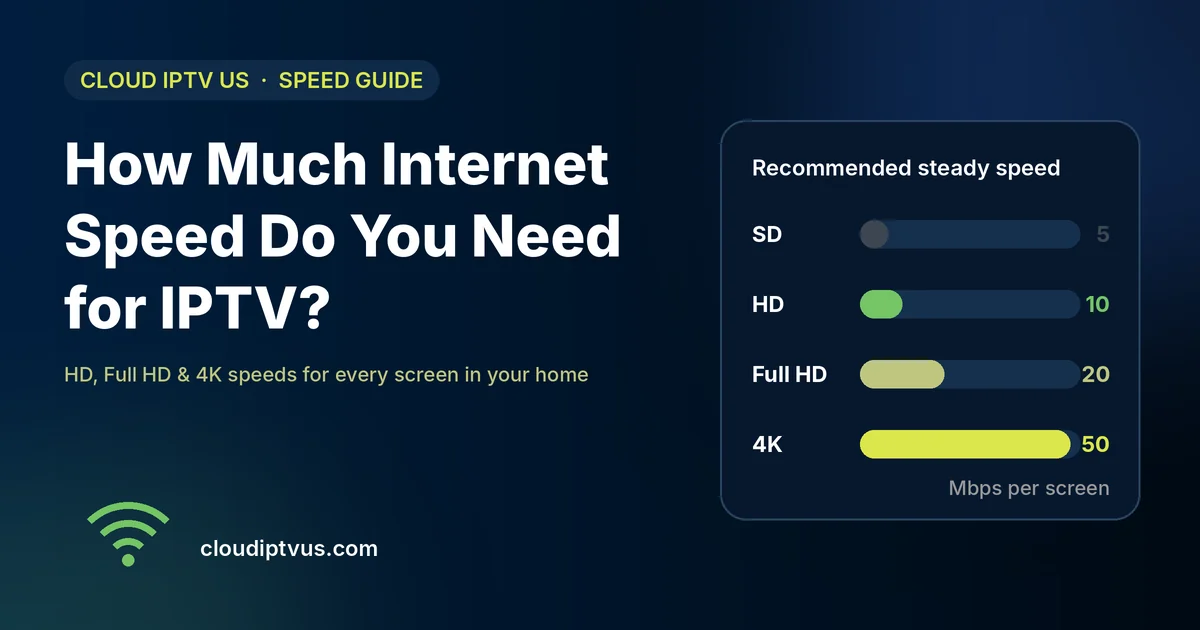
For one IPTV stream, plan on at least 10 Mbps for HD and 25 Mbps for 4K. Official guides give lower minimums: Netflix says 5 Mbps for Full HD and 15 Mbps for 4K. But live TV and sports work better with some extra room. Add the speed for each screen watching at the same time, then leave spare capacity for the rest of your home. A stable connection matters more than a big number on your internet bill.
Buffering is one of the most common IPTV problems. Often the cause isn’t the service at all. It’s the internet speed reaching your TV, especially when several people are online at once.
This guide explains how much internet speed you need for IPTV. It covers how to work out the right number for your home and how to check what your TV actually gets. You’ll also find simple fixes if streams keep freezing.
What Internet Speed Do You Need for IPTV?
Internet speed is measured in Mbps (megabits per second). For streaming, the number that matters is your download speed.
There is no single official “IPTV speed”. Different services publish their own figures. Here’s what three well-known sources say about one stream:
| Picture quality | Netflix (recommended) | FCC (minimum) | Fubo, live TV (continuous) |
|---|---|---|---|
| HD (720p) | 3 Mbps | 5–8 Mbps (HD video) | 7 Mbps |
| Full HD (1080p) | 5 Mbps | 5–8 Mbps (HD video) | 10 Mbps |
| 4K (Ultra HD) | 15 Mbps | 25 Mbps | 25 Mbps |
Sources: Netflix Help Center, FCC Broadband Speed Guide, Fubo Support.
Notice that the live TV service (Fubo) asks for more than Netflix. Movies can be buffered ahead, but live TV plays in real time, so it has less room for slowdowns. IPTV is mostly live TV, so the higher figures are the safer guide.
IPTV Speed Planning Guide
Based on the official figures above, here’s a simple guide we suggest for planning. These are our sums from those figures, not a provider rule.
| What you watch | Plan for at least |
|---|---|
| 1 screen in HD | 10 Mbps |
| 1 screen in 4K | 25 Mbps |
| 2 screens in HD | 20 Mbps |
| 3 screens in HD | 30 Mbps |
| 2 screens in 4K | 50 Mbps |
| 1 screen in 4K + 2 in HD | 45 Mbps |
How to work it out: add 10 Mbps for each HD screen and 25 Mbps for each 4K screen watching at the same time. Then leave extra room for phones, laptops, video calls and gaming in your home.
For example, Fubo notes that three 720p streams at once need at least 21 Mbps of steady speed. That’s before anyone else uses the internet.
Is My Internet Plan Fast Enough?
Many US home internet plans offer much more than this. The FCC’s benchmark for fixed home broadband is 100 Mbps download and 20 Mbps upload. A plan at that level has enough room for several HD or 4K streams on paper.
But the speed on your plan is the best case. What matters is the speed that actually reaches your TV, at the time you watch. That’s often much lower, for the reasons below.
Why IPTV Buffers Even With Fast Internet
If your plan is fast but streams still freeze, the problem is usually inside your home:
- Weak Wi-Fi: walls, floors and distance from the router cut your speed a lot. A TV two rooms away may get a fraction of your plan’s speed.
- Busy evenings: when everyone in your area is online, speeds can drop. This is often when live sports are on.
- Other devices: downloads, game updates, video calls and other streams all share the same connection.
- An unstable connection: a speed that keeps jumping up and down causes more trouble than a speed that’s lower but steady.
- An older device or app: an older streaming stick or a slow app can struggle, even with good internet.
- The service itself: sometimes the provider’s streams are the issue. A free trial helps you tell the difference.
How to Check Your Real IPTV Speed
Test the speed where it matters: at your TV.
- Test on the TV’s network. Use a phone or laptop next to the TV, on the same Wi-Fi. A speed site such as Fast.com works well. Some TV apps also include a network test.
- Test in the evening. Run a test between about 7 p.m. and 11 p.m., when networks are busiest.
- Test more than once. Note the lowest result, not just the best one.
- Compare with the planning guide. If your evening speed is close to or below what your screens need, expect buffering.
How to Fix IPTV Buffering
Try these steps, from easiest to hardest:
- Restart your router and streaming device. It’s simple, and it often works.
- Use a cable if you can. An Ethernet cable gives a steadier connection than Wi-Fi. Many TVs and boxes have an Ethernet port. Many streaming sticks don’t, but some models work with an Ethernet adapter.
- Move the router or add Wi-Fi coverage. Put the router in an open, central spot, or use a mesh system or extender for distant rooms.
- Use the 5 GHz Wi-Fi band if your router and device support it. It’s usually faster at short range.
- Pause other heavy use during important games or shows.
- Lower the picture quality if your app allows it. A steady HD picture is better than a freezing 4K one.
- Try a different player app. Some apps run better on some devices. See our guide to IPTV apps for Android TV and Fire TV.
- Ask your internet provider if your speed is low even next to the router, with a cable.
If buffering continues on many channels after all this, the problem may be the IPTV service. That’s exactly what a free trial helps you find out.
Match Your Screens to Your Speed
Before you choose an IPTV plan, think about how many screens will watch at the same time. Each one adds to the speed you need.
At Cloud IPTV US, the price depends on the number of devices. One device costs $12.99 for one month or $89.99 for 12 months. For more devices, multiply by the number of screens. For example, two devices for one month cost $25.98.
Not sure how many screens your connection can handle? Tell us your internet speed and devices. We’ll suggest a sensible setup through our free IPTV matching service, or you can compare plans yourself.
Test Your Connection With a Free Trial
Speed numbers only tell you so much. The best test is to watch real streams on your own TV and connection, especially in the evening and during a live game.
We arrange a free 24-hour trial from a third-party provider. It needs no card and never turns into a paid plan. Use our IPTV free trial checklist to test speed, picture quality and stability step by step. For more on trials, see our free trial guide.
Frequently Asked Questions
Is 10 Mbps enough for IPTV?
For one HD stream with little else running, usually yes. It’s not enough for 4K, or for several screens at once.
Is 25 Mbps enough for IPTV?
25 Mbps can handle one 4K stream, or about two HD streams with some room to spare. For more screens, or a busy household, you’ll want more.
Is 100 Mbps enough for IPTV?
On paper, 100 Mbps has room for several HD or 4K streams at once. In practice, it depends on how much of that speed reaches each TV, and what else is running in your home.
Do I need fast upload speed for IPTV?
Streaming mainly uses download speed. Upload speed matters more for video calls, gaming and sending large files.
Why does IPTV buffer only in the evening?
Evenings are when the most people are online, both in your home and in your area. Speeds can drop, and live sports add extra demand. Test during these hours before you choose a plan.
Can I use IPTV on mobile data?
It can work, but streaming uses a lot of data, and mobile speeds vary more. Check your data allowance first. For regular TV watching, home internet is more reliable.
For more answers, visit our FAQ page.
Get the Right IPTV Setup for Your Connection
Plan on about 10 Mbps for each HD screen and 25 Mbps for each 4K screen, leave room for everything else, and test at your TV in the evening. That’s usually all you need to avoid most buffering problems.
Want help choosing a plan that suits your connection? Message us on WhatsApp with your devices and internet speed, or email info@cloudiptvus.com.
